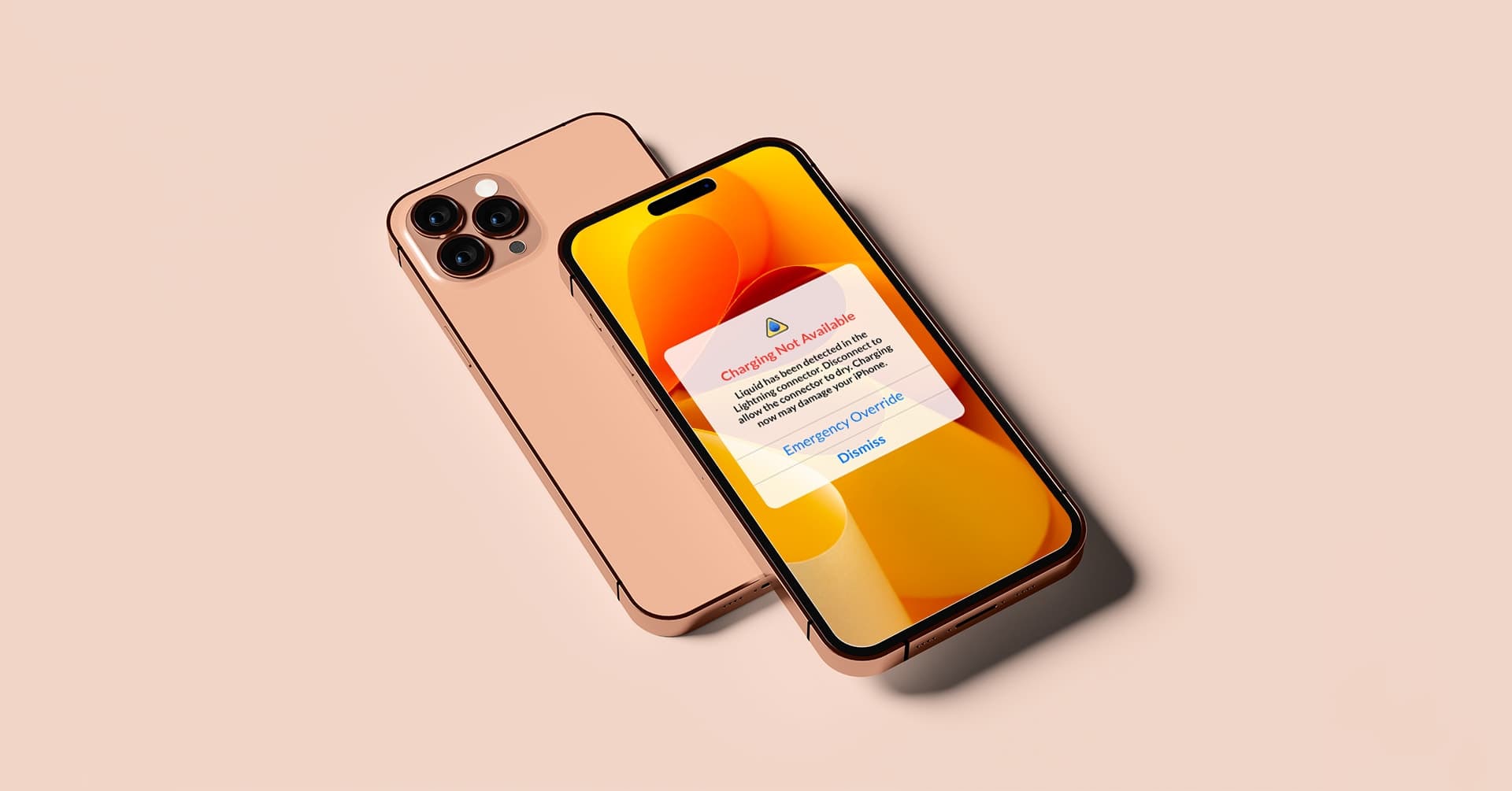
Liquid detected in Lightning connector? Learn how to fix this iPhone warning, dry your phone safely, and prevent damage with our expert troubleshooting guide.
Liquid Detected in Lightning Connector: Complete Fix Guide
Seeing the "liquid detected in Lightning connector" warning on your iPhone can be alarming. This safety feature, introduced in iOS 10, protects your device from potential damage when moisture is detected in the charging port. But what should you do when this message appears, and how can you safely resolve it?
This comprehensive guide covers everything you need to know about this warningfrom understanding why it appears to properly drying your iPhone and preventing future occurrences. Whether your phone took an unexpected swim or just encountered some humidity, we'll help you get back to charging safely.
Table of Contents
- Understanding the Warning
- Why This Feature Exists
- Immediate Steps to Take
- How to Properly Dry Your iPhone
- What NOT to Do
- Emergency Charging Options
- When the Warning Won't Go Away
- Checking for Water Damage
- Prevention Tips
- When to Seek Professional Help
- FAQs
- Conclusion
Understanding the Warning
The "liquid detected in Lightning connector" alert is a protective feature built into your iPhone.
What the Warning Means
When you see this message, it indicates:
- Moisture has been detected in the Lightning port
- The iPhone has disabled charging to prevent damage
- Connecting accessories may also be restricted
- The system is protecting internal components
How Detection Works
Your iPhone uses sensors to detect:
- Moisture in the Lightning port pins
- Liquid contact with the connector
- High humidity levels that could cause issues
- Residual moisture from previous exposure
Warning Variations
You may see different messages:
- "Liquid Detected in Lightning Connector": Standard moisture warning
- "Charging Not Available": Charging disabled due to liquid
- "Liquid Detected": When connecting accessories
- "Dismiss" or "Emergency Override": Options when warning appears
Why This Feature Exists
Understanding the purpose helps you appreciate the importance of proper response.
Protecting Your Investment
Charging with a wet Lightning port can cause:
- Corrosion: Electrical current accelerates corrosion of metal contacts
- Short circuits: Water conducts electricity unpredictably
- Permanent damage: Irreparable harm to charging components
- Data loss: Potential damage to logic board
The Science Behind It
When electricity meets water:
- Electrolysis occurs (chemical reaction)
- Metal pins corrode and deteriorate
- Connections become unreliable
- Heat generation can damage components
Apple's Approach to Water Resistance
Modern iPhones have IP ratings:
| iPhone Model | IP Rating | Water Resistance | |--|--|| | iPhone 15 series | IP68 | 6 meters, 30 min | | iPhone 14 series | IP68 | 6 meters, 30 min | | iPhone 13 series | IP68 | 6 meters, 30 min | | iPhone 12 series | IP68 | 6 meters, 30 min | | iPhone 11 Pro | IP68 | 4 meters, 30 min | | iPhone 11 | IP68 | 2 meters, 30 min |
Important: Water resistance is not water-proof, and the Lightning port remains vulnerable.
Immediate Steps to Take
When the liquid detection warning appears, follow these steps immediately.
Step 1: Disconnect Immediately
- Unplug the Lightning cable
- Remove any accessories
- Don't attempt to reconnect
Step 2: Initial Assessment
Check the situation:
- How did moisture get in?
- Was the phone submerged?
- Is there visible water in the port?
- Are other ports affected?
Step 3: Position Your iPhone Correctly
- Hold the iPhone with the Lightning connector facing down
- Gently tap against your palm
- This helps gravity drain excess liquid
- Avoid shaking vigorously
Step 4: Move to a Dry Environment
- Get away from the water source
- Find a well-ventilated area
- Room temperature is ideal
- Avoid humid locations
How to Properly Dry Your iPhone
Patience and proper technique are essential for safe drying.
Apple's Official Recommendations
According to Apple:
- Tap gently with connector facing down to remove excess liquid
- Leave in a dry area with good airflow
- Wait at least 30 minutes before attempting to charge
- If warning persists, wait up to 24 hours
Effective Drying Methods
Natural Air Drying (Recommended):
- Place iPhone in front of a fan
- Position connector facing the airflow
- Ensure good ventilation
- Wait 4-24 hours depending on exposure
Silica Gel Method:
- Place iPhone with silica gel packets in a sealed container
- Silica absorbs moisture from the air
- More effective than rice
- Leave for 24-48 hours if heavily exposed
Checking Progress
Periodically check by:
- Looking into the port with a flashlight
- Waiting the recommended time
- Attempting to plug in (if warning cleared)
- Checking for moisture indicators
What NOT to Do
Avoiding these common mistakes is just as important as proper drying techniques.
Never Use These Methods
Do NOT use:
- Hair dryers: Heat can damage components and push water deeper
- Rice: Dust and starch can cause additional problems
- Compressed air: Can force liquid further into the device
- Cotton swabs in port: Can leave fibers and cause damage
- Ovens or microwaves: Will destroy your device
- Direct sunlight: Excessive heat damages batteries
Why Rice Doesn't Work
The rice method is a myth because:
- Rice doesn't absorb moisture efficiently
- Starch particles can enter the port
- Small rice fragments may get stuck
- No better than air drying alone
- Can introduce additional debris
Don't Force Charging
Risks of using "Emergency Override":
- Accelerated corrosion
- Permanent port damage
- Potential short circuits
- Voided warranty for water damage
Emergency Charging Options
If you absolutely must charge your iPhone, there are safer alternatives.
Wireless Charging (If Available)
MagSafe or Qi charging is safer because:
- No electrical contact with wet port
- Still works with moisture present
- Reduces corrosion risk
- Available on iPhone 8 and later
How to wireless charge safely:
- Ensure the back of your iPhone is dry
- Wipe the wireless charger clean
- Place iPhone on charger
- Remove case if it trapped water
Using Emergency Override
Only use this option if:
- You have no other charging method
- It's a genuine emergency
- You understand the risks
- You accept possible permanent damage
To use Emergency Override:
- When warning appears, tap "Emergency Override"
- Charging will proceed despite moisture
- Monitor for unusual heat
- Disconnect if phone becomes hot
When the Warning Won't Go Away
Sometimes the warning persists even after drying. Here's what to do.
Potential Causes
False positives can occur from:
- Debris in the Lightning port
- Damaged sensors
- Software glitches
- Residual mineral deposits
- Humidity without actual liquid
Troubleshooting Steps
1. Inspect the Port:
- Use a flashlight to look inside
- Check for visible debris or corrosion
- Look for damaged pins
2. Clean the Port (Carefully):
- Use a wooden or plastic toothpick
- Gently remove visible lint or debris
- Avoid metal objects
- Don't apply excessive pressure
3. Try a Different Cable:
- Damaged cables can trigger false warnings
- Use Apple-certified cables
- Test with a known-working cable
4. Restart Your iPhone:
- Force restart can clear sensor errors
- iPhone 8 or later: Press and release Volume Up, press and release Volume Down, hold Side button until Apple logo appears
5. Update iOS:
- Software updates may fix sensor bugs
- Go to Settings > General > Software Update
Checking for Water Damage
Apple includes Liquid Contact Indicators (LCIs) that show water exposure history.
Locating the LCI
iPhone LCI location:
- Inside the SIM card slot
- Use a flashlight to see it
- Remove SIM tray to check
Interpreting the Indicator
| LCI Color | Meaning |
|---|---|
| White or silver | No water contact detected |
| Red or pink | Water contact has occurred |
| Partially red | Some water exposure |
What Water Damage Means for Warranty
- Apple's standard warranty doesn't cover water damage
- AppleCare+ covers accidental damage (with deductible)
- Triggered LCI may affect repair options
- Be honest with technicians about exposure
Prevention Tips
Preventing liquid exposure is always better than dealing with the consequences.
Daily Habits
Keep away from water sources
- Don't use phone near pools, sinks, or bathtubs
- Be cautious in rain
- Keep distance from drinks
Use protective cases
- Water-resistant cases for extra protection
- Port covers when in risky environments
- Remove before charging
Be weather-aware
- Humidity can trigger warnings
- Sudden temperature changes cause condensation
- Store properly in humid climates
Port Maintenance
- Regularly clean Lightning port
- Keep dust and lint out
- Use port covers when not charging
- Inspect for debris periodically
Charging Habits
- Only charge in dry environments
- Don't charge immediately after water exposure
- Use wireless charging in questionable conditions
- Inspect port before plugging in
When to Seek Professional Help
Some situations require expert intervention.
See a Professional If:
- Warning persists beyond 48 hours of thorough drying
- You see visible corrosion in the Lightning port
- The port appears damaged or pins are bent
- Other functions are affected (speakers, buttons)
- The phone won't turn on after water exposure
- There's visible water behind the screen
Where to Get Help
Apple Support Options:
- Apple Store Genius Bar appointment
- Apple Authorized Service Provider
- Apple Support chat or phone
Third-Party Repair:
- May void warranty
- Choose reputable services
- Ask about water damage experience
- Get written estimates
Repair Costs (Approximate)
| Service | Without AppleCare+ | With AppleCare+ | ||-|| | Lightning port repair | $200-$400+ | $99 (accidental damage fee) | | Full device replacement | Varies by model | $99 (accidental damage fee) |
FAQs
How long does it take for the liquid detected warning to go away?
Typically, the warning clears within 30 minutes to 24 hours after proper drying. If your iPhone was significantly exposed to water, it may take up to 48 hours. Ensure you're drying it properly with the Lightning connector facing down in a well-ventilated area.
Can I use my iPhone while the liquid detected warning is showing?
Yes, you can use your iPhone normallyapps, calling, and most functions work fine. You just cannot charge via the Lightning port or use Lightning accessories until the moisture clears. Wireless charging remains an option if available.
Will the liquid detected warning cause permanent damage?
The warning itself doesn't cause damageit prevents damage. However, the liquid that triggered the warning could cause problems if not properly addressed. Follow drying procedures carefully and avoid charging until the warning clears.
Should I put my iPhone in rice to dry it?
No, this is a common myth. Rice doesn't effectively absorb moisture from electronics and can introduce dust, starch, and debris into your port. Apple recommends air drying in a well-ventilated area or using silica gel packets instead.
What if I accidentally used Emergency Override?
If you used Emergency Override once and the phone charged normally, you may be fine. Check for any signs of damage or unusual behavior. If you notice issues, stop using the port and let it dry completely. Monitor for corrosion in the following days.
Can I still use wireless charging with liquid in the Lightning port?
Yes, wireless charging (MagSafe or Qi) is generally safe when the Lightning port has moisture, as long as the back of your iPhone is dry. This is the recommended charging method when you see the liquid detected warning and need to charge urgently.
Conclusion
The "liquid detected in Lightning connector" warning is a protective feature designed to save your iPhone from serious damage. While seeing this alert can be stressful, responding properly ensures the best outcome for your device.
Key takeaways:
- Don't panicthis warning is your iPhone protecting itself
- Disconnect immediately and position with the port facing down
- Air dry properly in a ventilated area for at least 30 minutes to 24 hours
- Avoid harmful methods like rice, hair dryers, or compressed air
- Use wireless charging if you need power urgently
- Seek professional help if the warning persists beyond 48 hours
Remember, patience is your best tool when dealing with moisture in electronics. Taking the time to properly dry your iPhone is always worth it compared to the cost and inconvenience of permanent water damage.
With proper care and attention, most iPhones recover fully from liquid exposure. Follow this guide, resist the urge to rush charging, and your device should be back to normal in no time.